General Settings
General Configuration Guide
The General Configuration page allows you to set up basic parameters for the eKYC flow. To access this page, log in to the eKYC Portal and choose the eKYC Configuration tab in the side menu.
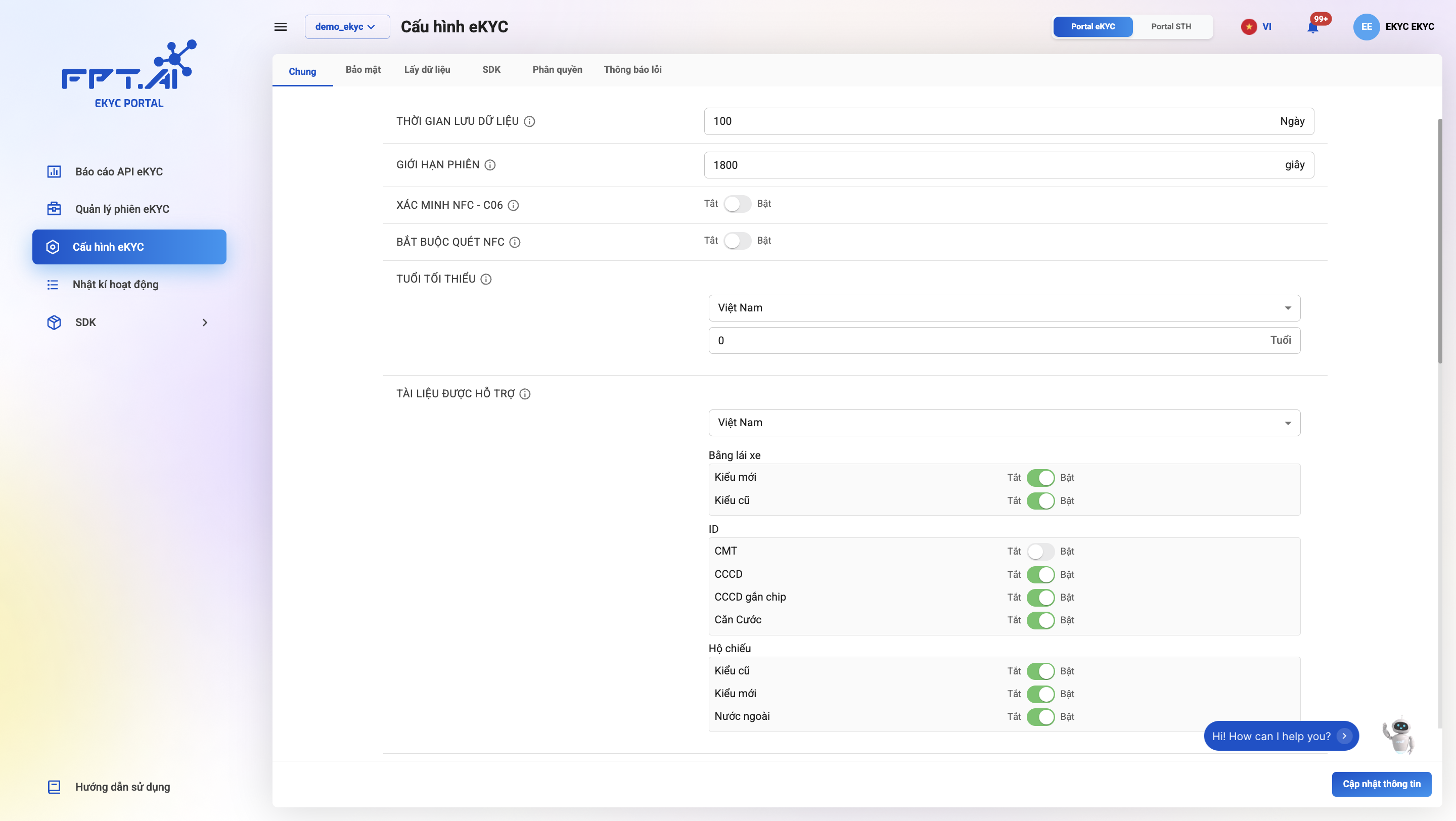
Below are the detailed instructions:
1. Data Retention Period

Description: The duration for which eKYC data and results will be stored in the eKYC system (unit: Days).
The default value is 0, meaning data will not be stored by default.
Customers who wish to retain data for post-verification purposes need to set a value greater than 0.
How to configure: Enter the number of days in the "Data Retention Period" field. Example: 30.
The maximum free retention period is 30 days. If customers need to store data for a longer period, please contact the Account Manager for consultation.
In case customers do not store data (set to 0), the system will still retain basic eKYC session information that does not contain personal data, such as: start and end time, time and result of each step in the eKYC session.
2. Session Limit

Description: The maximum duration for each eKYC session (unit: Seconds).
The default value is 1800, meaning each eKYC session will last a maximum of 30 minutes.
During this period, the session status is considered "Incomplete". Afterward, if the session status has not changed to "Success" or "Failed", the system will automatically change the status to "Expired".
How to configure: Enter the number of seconds in the "Session Limit" field. Example: 1800.
For security reasons, customers are advised not to set too long a duration for each eKYC session. The maximum recommended setting is 1 hour. If customers set too long a duration, attackers will have more time to attack each step within the eKYC session.
3. NFC Verification

Description: NFC data verification consists of 2 steps:
- Step 1: Decrypt and verify the integrity of data in the NFC chip. This is performed on the eKYC system server.
- Step 2: Verify the digital signature in the NFC data with the C06 service (Ministry of Public Security).
Enabling or disabling this configuration is equivalent to enabling or disabling step 2 in the above process. Note that this option only applies when customers use the NFC chip scanning feature of the chip-enabled Citizen ID card.
How to configure: Use the toggle switch to enable or disable this feature.
4. Mandatory NFC Scan

Description: Enabling or disabling this configuration determines whether NFC scanning is mandatory/optional for reading information from the chip-enabled ID card. Note that this option only applies when customers use the NFC chip scanning feature of the chip-enabled ID card.
How to configure: Use the toggle switch to enable or disable this feature.
5. Minimum Age

Description: Select the minimum valid age of the user when performing eKYC.
The system will compare the date of birth extracted from the document and report an error if it falls outside the configured range.
How to configure: Use the toggle switch to enable or disable this feature.
6. Supported Documents
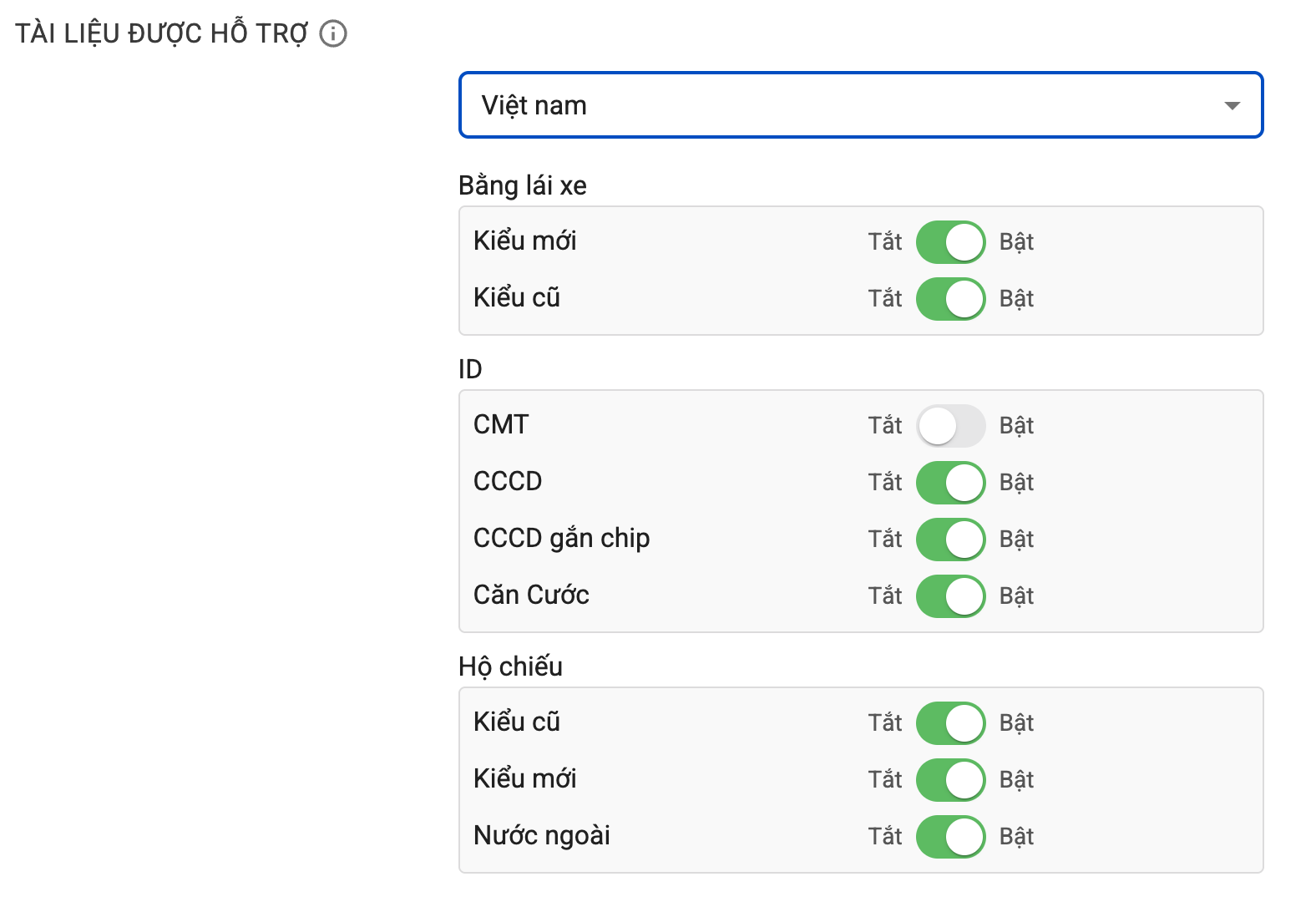
Description: Select the document types that the customer's eKYC flow supports. If a document type is not selected, the system will report an error "Unsupported document type" when the user uploads that document in the eKYC session.
Example: if a customer uses the eKYC flow for ID and the Identity Card (CMT) type is disabled, when a user uploads an Identity Card image, they will receive the error "Unsupported document type". However, if the customer uploads a Citizen ID card (CCCD) image (which is enabled), it will work normally.
How to configure:
- Select a country from the dropdown list.
- Enable or disable document types such as "New Driver's License", "Old Driver's License", "CMT", "CCCD", "Chip-enabled CCCD", "Identity Card" using the corresponding toggle switches.
7. Custom List
This section includes custom configurations for each check criteria of the document types supported by the eKYC flow. These criteria cover both the document verification step and the face verification step. Criteria can be enabled or disabled according to usage needs.
In addition to enabling/disabling, the main criteria also have additional attributes aimed at enhancing the end-user experience while maintaining the security of the eKYC flow.
7.1. Vietnam ID Customization

7.1.1. Use Custom Threshold

Description: If this option is enabled, the system will use custom thresholds for check criteria instead of the system defaults.
System default thresholds vary by criteria. If customers do not enable this option, the system will use default thresholds for all check criteria.
How to configure: Use the toggle switch to enable or disable this option.
The default thresholds have been tested and optimized for most eKYC use cases. Customers should not change thresholds arbitrarily as this may affect the efficiency of the eKYC flow. Any changes related to custom thresholds should be coordinated with the FPT AI eKYC consultant for support.
7.1.2. Enable Quality Check
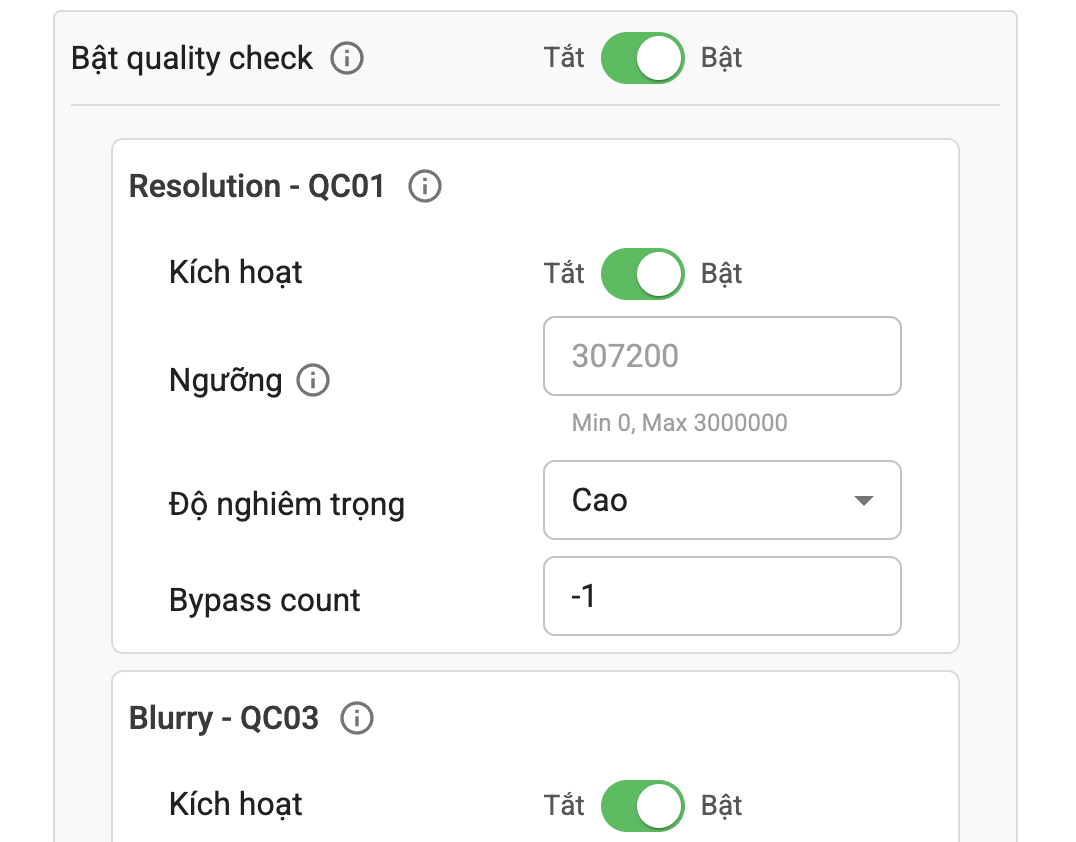
Description: If this option is enabled, the system will add an image quality check step for Vietnam ID during document verification.
If the document does not meet quality requirements, the system will report an error "Image quality not satisfactory" (see the image quality error code documentation for details).
There are 5 criteria in the image quality check step:
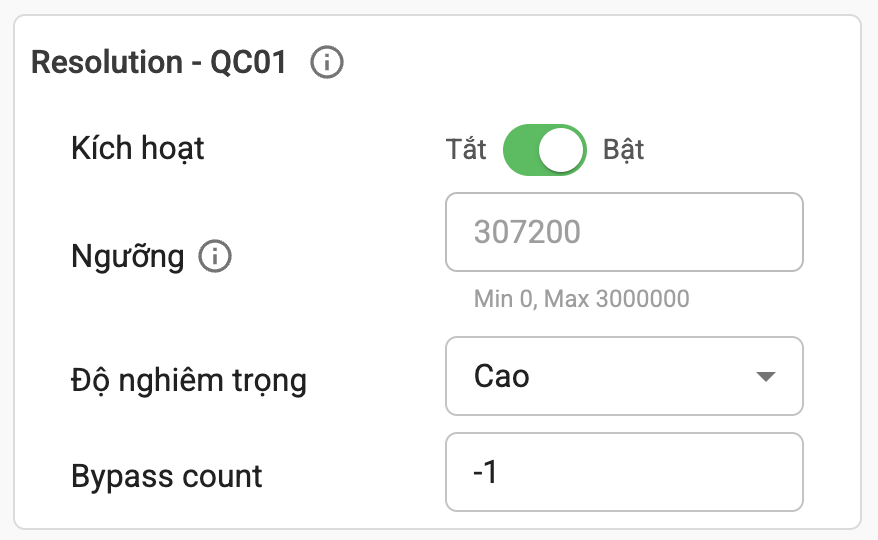
- Resolution: The minimum default resolution is 640x480 (corresponding to a threshold of 307200). The lower this threshold, the easier it is for input images to pass.
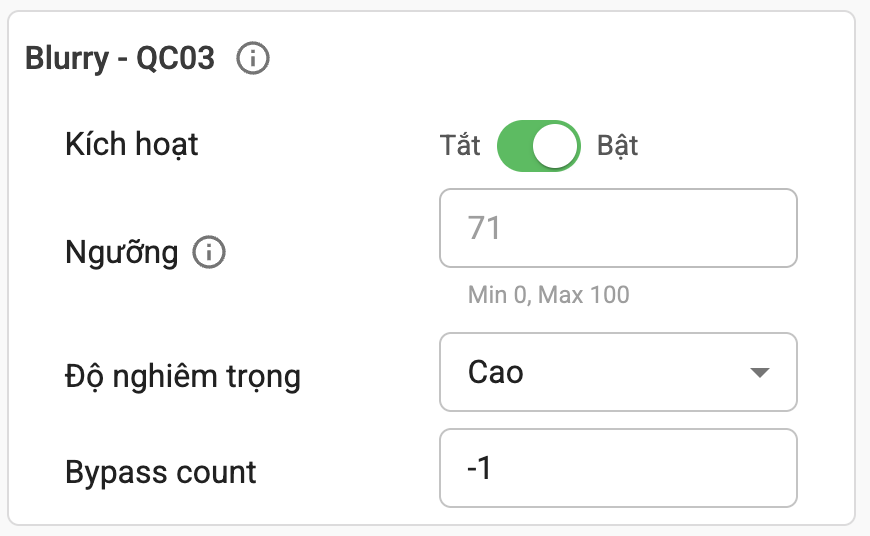
- Blur: The maximum default blur is 71 (out of a maximum of 100). The higher this threshold, the easier it is for input images to pass.
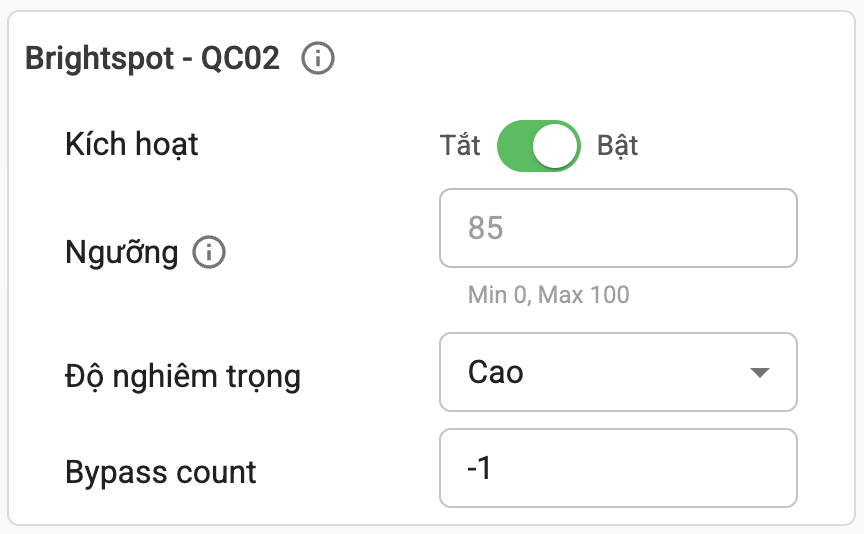
- Glare: Checks whether the input image has glare. The default glare threshold is 85 (out of a maximum of 100). The higher this threshold, the easier it is for input images to pass.
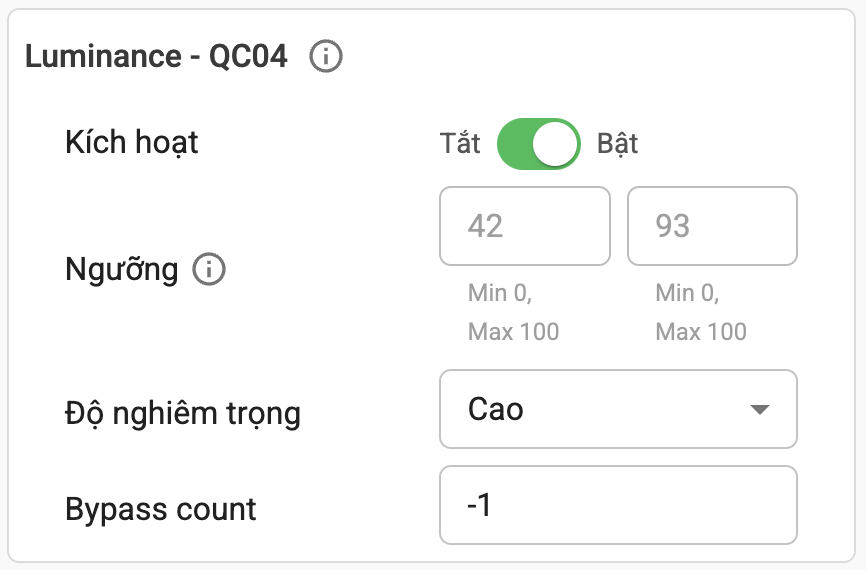
- Brightness: Checks the overall brightness of the input image. The default allowed brightness range is between 42 and 93 (out of a minimum/maximum of 0/100).
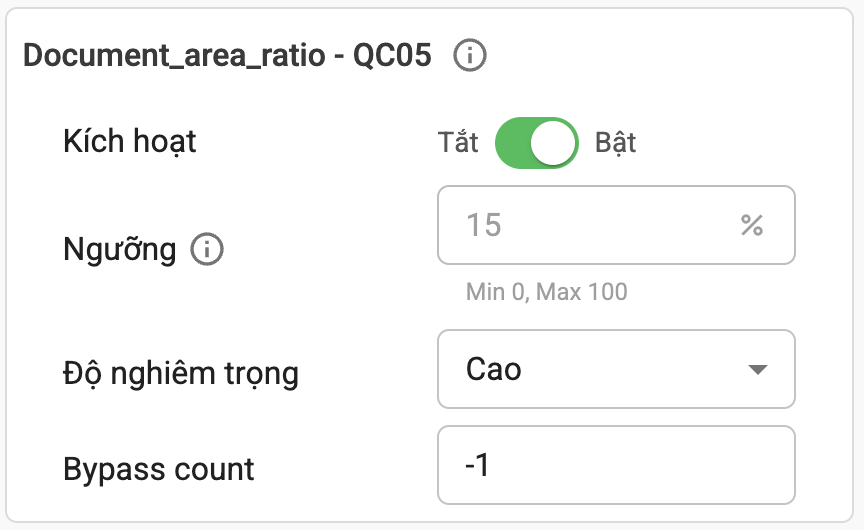
- Document area ratio: Checks the ratio of the document area to the total image area in the input image. The minimum default document area ratio is 15% (out of a minimum of 0% and maximum of 100%). The lower this threshold, the easier it is for input images to pass.
How to configure: Use the toggle switch to enable or disable this option.
7.1.3. Correct Name from QR Code

Description: If this option is enabled, when the end user submits an ID image containing a QR code, if the system can read the QR code content and the "name" field in the OCR result differs from the name in the QR code in terms of Vietnamese diacritics, the system will automatically correct the name in the OCR result to the name in the QR code.
This feature only supports cases where Vietnamese diacritics in the name information on the ID are misprinted, leading to difficulty in accurate extraction.
How to configure: Use the toggle switch to enable or disable this option.
7.1.4. Enable Fraud Check

Description: Includes criteria related to verifying the integrity and authenticity of Vietnam ID documents.
| No. | Criteria Name (Code) | Description | Notes |
|---|---|---|---|
| 1 | FC01 - Photocopied | Checks if the image is a black-and-white photocopy. Images with a probability score higher than the threshold are considered fraudulent. | Default threshold: 0.5 (min: 0, max: 1). Default severity: High |
| 2 | FC02 - Recaptured | Checks if the image is recaptured from an LCD screen. Images with a probability score higher than the threshold are considered fraudulent. | Default threshold: 0.5 (min: 0, max: 1). Default severity: High |
| 3 | FC03 - Edited | Checks if the image has been edited or is a color photocopy. Images with a probability score higher than the threshold are considered fraudulent. | The higher the threshold, the looser the evaluation and the higher the bypass rate. Default threshold: 0.5 (min: 0, max: 1). Default severity: High |
| 4 | FC04 - Cornered | Checks if the document image has missing corners. Images with a probability score higher than the threshold are considered fraudulent. | Default threshold: 0.5 (min: 0, max: 1). Default severity: High |
| 5 | FC05 - Face_check | Checks the integrity of the portrait photo on the document. Images with a probability score higher than the threshold are considered fraudulent. | Default threshold: 0 (min: 0, max: 1). Default severity: High |
| 6 | FC06 - Qrcode_check | Checks the integrity of the QR Code on the input image. Images with a probability score higher than the threshold are considered fraudulent. | Default threshold: 0.9 (min: 0, max: 1). Default severity: High |
| 7 | FC07 - Mrz_check | Checks the integrity of the MRZ code on the input image. Images with a probability score higher than the threshold are considered fraudulent. | Default threshold: 0.75 (min: 0, max: 1). Default severity: High |
| 8 | FC08 - Emblem_check | Checks the integrity of the national emblem. A probability score higher than the threshold indicates success. | Default threshold: 0.7 (min: 0, max: 1). Default severity: High |
| 9 | FC09 - Headline_check | Checks the integrity of the national title/motto on the input image. Images with a probability score higher than the threshold are considered fraudulent. | Default threshold: 0.7 (min: 0, max: 1). Default severity: High |
| 10 | FC10 - Title_check | Checks the integrity of the document title. | Default threshold: 0.7 (min: 0, max: 1). Default severity: High |
| 11 | FC11 - Fingerprint_check | Checks the integrity of the fingerprint image on the input image. Images with a probability score higher than the threshold are considered fraudulent. | Default threshold: 0.7 (min: 0, max: 1). Default severity: High |
| 12 | FC12 - Stamp_check | Checks the integrity of the stamp image on the input image. Images with a probability score higher than the threshold are considered fraudulent. | Default threshold: 0.7 (min: 0, max: 1). Default severity: High |
| 13 | FC13 - Chip_check | Checks the integrity of the chip image on the input image. Images with a probability score higher than the threshold are considered fraudulent. | Default threshold: 0.7 (min: 0, max: 1). Default severity: High |
For detailed descriptions of related error codes, refer to the document OCR Fraud-Related Errors. Details of the criteria are described above.
How to configure: Use the toggle switch to enable or disable this option and each specific criteria.
7.1.5. Enable Post Check

Description: Includes criteria related to post-verification of OCR results for Vietnam ID documents.
| No. | Error Code | Description | Notes |
|---|---|---|---|
| 1 | E01 | One or more fields are empty. | |
| 2 | E02 | ID number structure is incorrect. | |
| 3 | E03 | Date of birth structure is incorrect. | |
| 4 | E04 | Date of birth cannot be after today. | |
| 5 | E05 | Current age cannot be under 14. | |
| 6 | E06 | Nationality is incorrect. | |
| 7 | E07 | Year of birth does not match the ID number. | |
| 8 | E08 | Gender code does not match the ID number. | |
| 9 | E09 | Expiry date structure is incorrect. | |
| 10 | E10 | Document has expired. | |
| 11 | E11 | Case where only the front side is submitted and the document holder is under 58 years old at the current time. | |
| 12 | E12 | Issue date structure is incorrect. | |
| 13 | E13 | Issue date cannot be after today. | |
| 14 | E15 | Error when both sides are submitted in 1 request and the 2 sides of the document do not match. | |
| 15 | E17 | Error when both sides are submitted in 1 request and the age on the document is under 14. | |
| 16 | E18 | Error when both sides are submitted in 1 request and the document is an old Identity Card (CMT). | |
| 17 | E19 | Error when both sides are submitted in 1 request and the age on the document is under 58 at the current time. | |
| 18 | E20 | Error when both sides are submitted in 1 request and the age on the document is under 58 (old CCCD) or under 60 (new CCCD) at the current time. | |
| 19 | E21 | Error when both sides are submitted in 1 request and the age on the document is under 58 at the current time and the nationality is Vietnamese. | |
| 20 | E22 | Error when both sides are submitted in 1 request and the age on the document is 58 or older at the current time. | |
| 21 | E30 | Error when both sides are submitted in 1 request and the document type is Identity Card (Căn cước). | |
| 22 | E31 | Error when a non-chip Citizen ID card has its issuing authority changed by province. | |
| 23 | E32 | Error for chip-enabled Citizen ID cards: Chip-enabled CCCD started being issued in 2015. If the issuance year is before 2015, an error is reported. | |
| 24 | QR01 | Error when the submitted documents include the front side of a chip-enabled Citizen ID card but no QR image is attached. | |
| 25 | QR02 | Error when the verify_qrcode=1 flag is set. The read QR code result does not match the QR code in the request. |
For detailed descriptions of related error codes, refer to the document OCR Post-Check Errors. Details of the criteria are described above.
How to configure: Use the toggle switch to enable or disable this option and each specific criteria.
7.2. Passport Customization
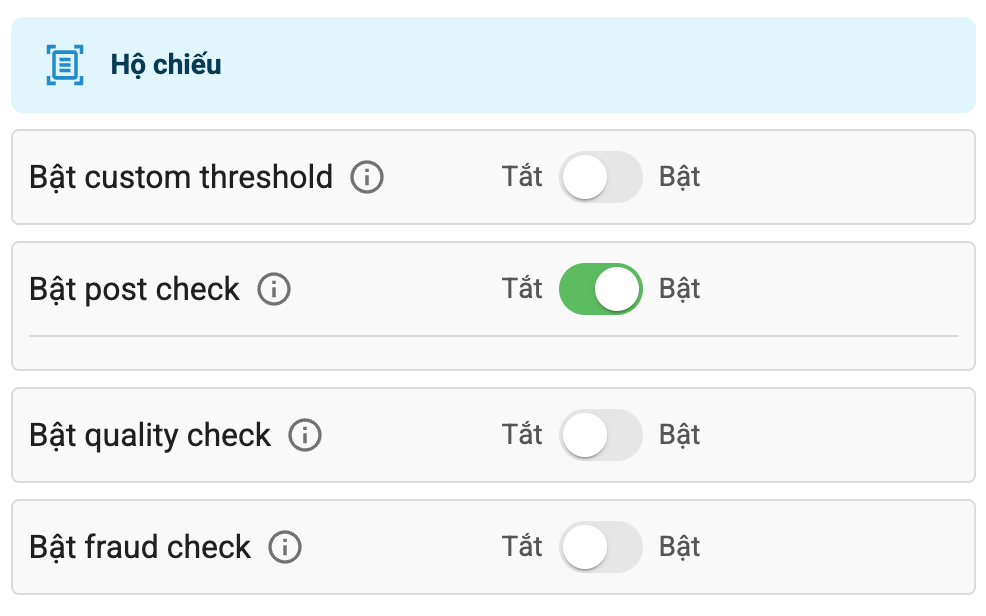
7.2.1. Use Custom Threshold
Description: If this option is enabled, the system will use custom thresholds for check criteria instead of the system defaults.
System default thresholds vary by criteria. If customers do not enable this option, the system will use default thresholds for all check criteria.
How to configure: Use the toggle switch to enable or disable this option.
The default thresholds have been tested and optimized for most eKYC use cases. Customers should not change thresholds arbitrarily as this may affect the efficiency of the eKYC flow. Any changes related to custom thresholds should be coordinated with the FPT AI eKYC consultant for support.
7.2.2. Enable Post Check
Description: Includes criteria related to post-verification of OCR results for Passport documents. For detailed descriptions of related error codes, refer to the document OCR Post-Check Errors.
How to configure: Use the toggle switch to enable or disable this option.
7.2.3. Enable Quality Check
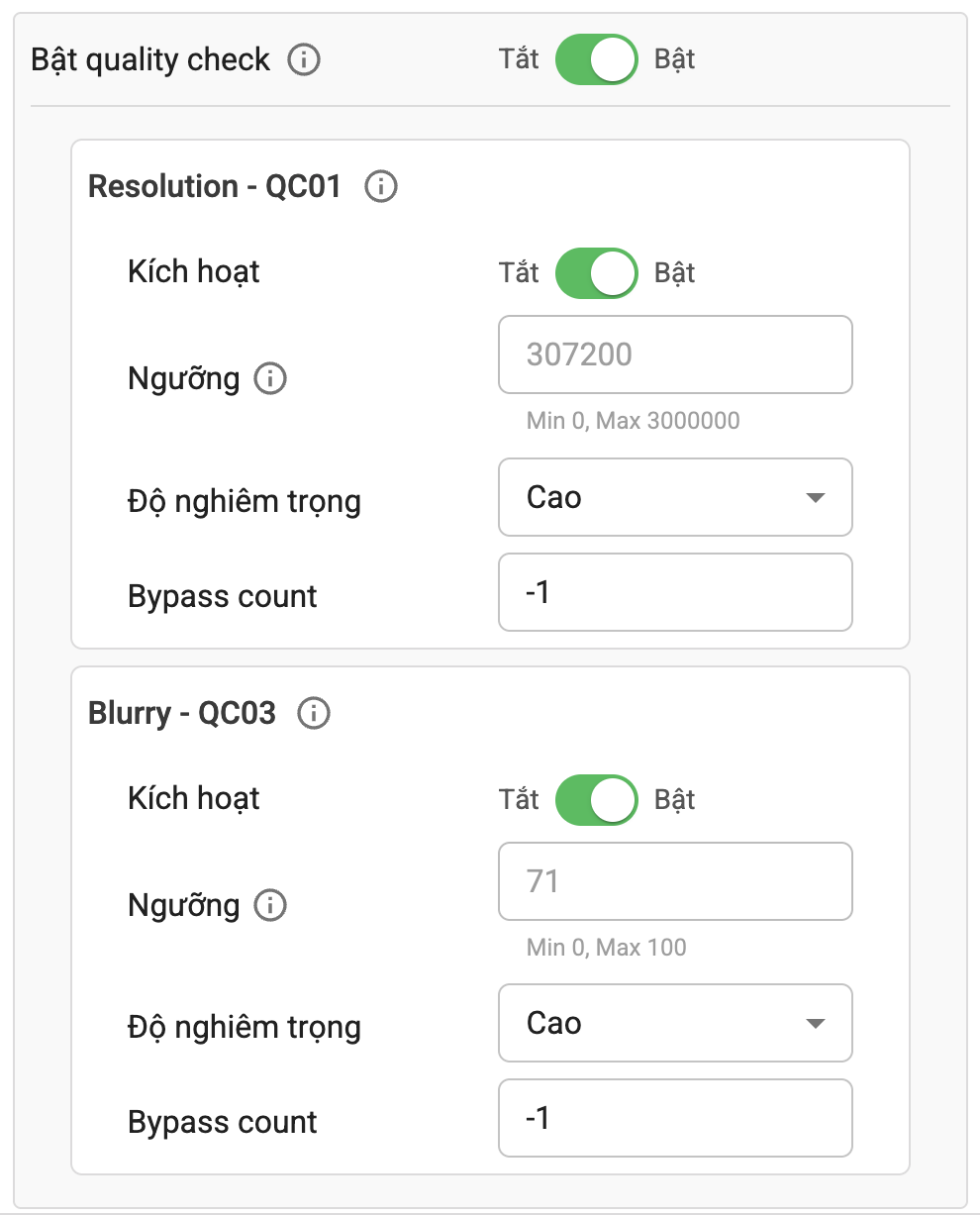
Description: If this option is enabled, the system will add an image quality check step for Passport during document verification.
If the document does not meet quality requirements, the system will report an error "Image quality not satisfactory" (see the image quality error code documentation for details).
There are 5 criteria in the image quality check step. However, currently for Passport, only 2 criteria can be configured: Resolution and Blur (see the description of Vietnam ID image quality check for details).
How to configure: Use the toggle switch to enable or disable this option.
7.2.4. Enable Fraud Check
Description: Includes criteria related to verifying the integrity and authenticity of Passport documents.
| No. | Criteria Name (Code) | Description | Notes |
|---|---|---|---|
| 1 | FC01 - Photocopied | Checks if the image is a black-and-white photocopy. Images with a probability score higher than the threshold are considered fraudulent. | Default threshold: 0.5 (min: 0, max: 1). Default severity: High |
| 2 | FC02 - Recaptured | Checks if the image is recaptured from an LCD screen. Images with a probability score higher than the threshold are considered fraudulent. | Default threshold: 0.5 (min: 0, max: 1). Default severity: High |
| 3 | FC03 - Edited | Checks if the image has been edited or is a color photocopy. Images with a probability score higher than the threshold are considered fraudulent. | The higher the threshold, the looser the evaluation and the higher the bypass rate. Default threshold: 0.5 (min: 0, max: 1). Default severity: High |
| 4 | FC04 - Cornered | Checks if the document image has missing corners. Images with a probability score higher than the threshold are considered fraudulent. | Default threshold: 0.5 (min: 0, max: 1). Default severity: High |
| 5 | FC05 - Face_check | Checks the integrity of the portrait photo on the document. Images with a probability score higher than the threshold are considered fraudulent. | Default threshold: 0 (min: 0, max: 1). Default severity: High |
| 6 | FC07 - Mrz_check | Checks the integrity of the MRZ code on the input image. Images with a probability score higher than the threshold are considered fraudulent. | Default threshold: 0.75 (min: 0, max: 1). Default severity: High |
| 7 | FC20 - Perforated | Checks whether the MRZ area of the Passport has been perforated. Images with a probability score higher than the threshold are considered fraudulent. | Default threshold: 0.5 (min: 0, max: 1). Default severity: High |
For detailed descriptions of related error codes, refer to the document OCR Fraud-Related Errors. Details of the criteria are described above.
How to configure: Use the toggle switch to enable or disable this option and each specific criteria.
7.3. Face Check Customization
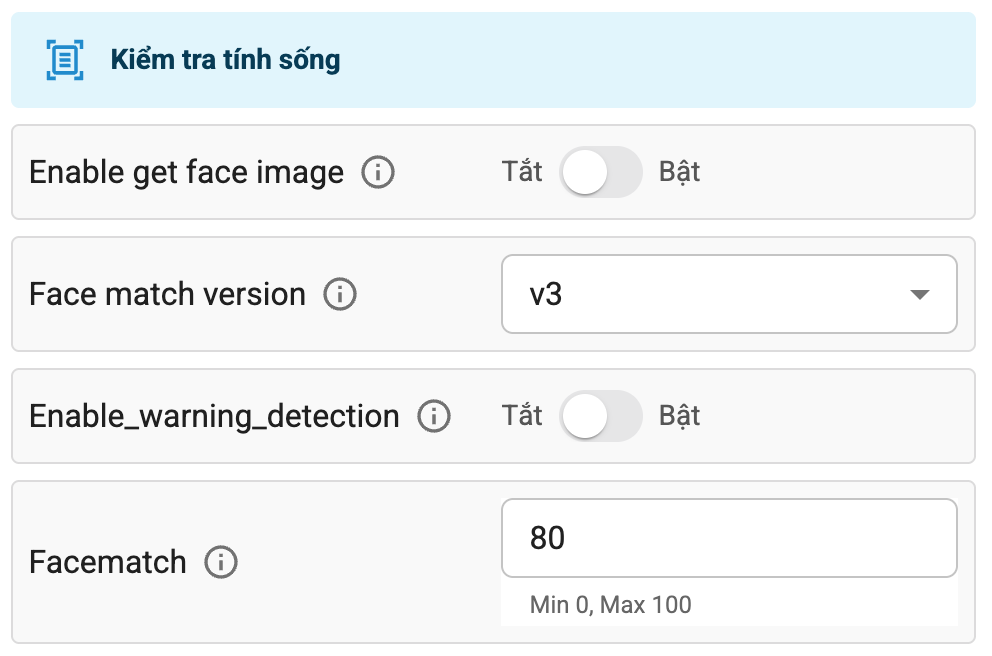
This section includes options related to configuring liveness check and face matching in the eKYC flow.
7.3.1. Face Image Capture Option

Description: Enable/Disable the option to return additional face images for matching in eKYC session data (see Retrieving Data from the System documentation for session data retrieval) and in the liveness check API response.
How to configure: Use the toggle switch to enable or disable this option.
7.3.2. Face Match Version Option

Description: This option allows users to configure the face matching version. There are 2 versions: v3 and v4. Version v4 offers higher accuracy with negligible increase in processing time.
How to configure: Use the dropdown menu to select the desired face matching version.
New customers are recommended to use version v4 for the highest face matching accuracy. Customers currently using version v3 are encouraged to upgrade to version v4. However, customers should evaluate both versions on their own data to ensure the transition does not impact their business operations.
7.3.3. Eye Closure Check Option
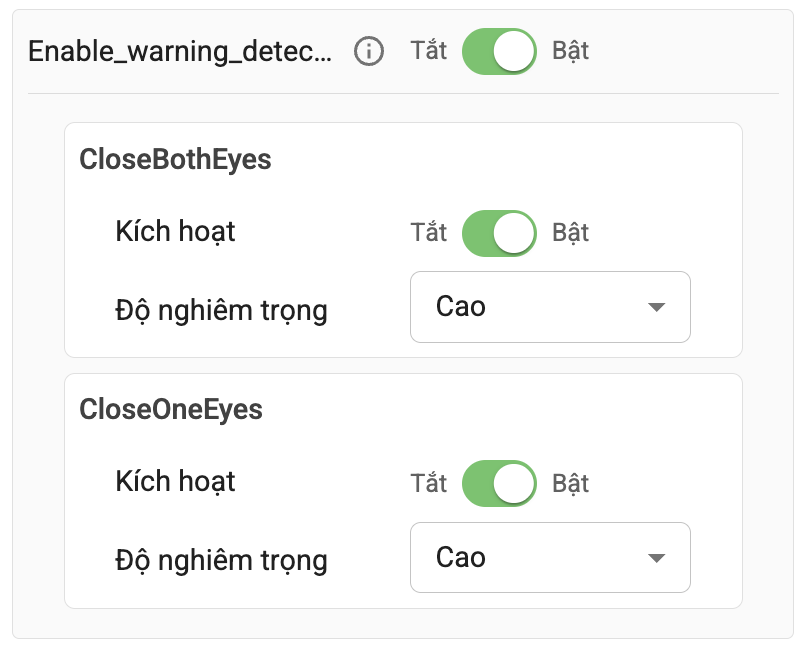
Description: This option allows users to configure eye closure checking during the liveness check process. If enabled, the system will check whether the user's eyes are closed in the face image.
| No. | Error Code | Description | Notes |
|---|---|---|---|
| 1 | CloseBothEyes | Enable/Disable the criteria requiring both eyes to be open | Default severity: Medium |
| 2 | CloseOneEye | Enable/Disable the criteria checking for left or right eye closure | Default severity: Medium |
How to configure: Use the toggle switch to enable or disable this option and each specific criteria.
7.3.4. Face Match Threshold Option

Description: This option allows users to configure the face matching threshold. The default threshold is 80 (min: 0, max: 100). The higher this threshold, the more difficult it is for two face images to match.
How to configure: Enter a desired number between 0 and 100, then click Update Information to adjust the face matching threshold.
Make sure to click the Update Information button after making any changes to apply the new configuration. If you encounter any issues, please contact the technical support team.